Showing posts with label Tips and Tricks. Show all posts

Saturday, May 10, 2008

How to accelerate your Hardrive speed

Is it possible to accelerate your hard disk drive to speed up file transfer? At first I didn't know it was possible because thinking that Microsoft might have utilize the best code to have the fastest speed in file copying.
How to speed up file copying


Is it possible to download files better than with non-resumable Internet Explorer? Or

defragment a hard-drive faster and more optimal than with Windows' defrag utility? Is it

possible to edit images better than with Windows' Paint? Or edit text documents better than

with Notepad? What about repartitioning hard-drives? Is Windows' fdisk always up to the

task?

Here's what you need to speed up file copying.


Burst copy is the hard-drive accelerator that significantly increases file transfer speed.

By taking full advantage of the DMA support provided by your hard-drive, and using

dynamically adjusted buffers to reduce seek times, BurstCopy will significantly reduce the

time you spend waiting for files to transfer.
How to copy file faster
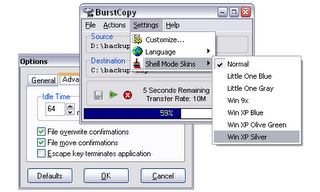

Other than speeding up file transfer speed, it has extra features that Windows should have

long ago. If you met any errors during copying files in Windows, the transfer will be

terminated. If you're copying thousands of small files, you know which has been copied and

which haven't. With BurstCopy, any errors that you may typically encounter will not

terminate your transfer. A friendly window will inform you of the error, and allow you to

choose the appropriate action (skip, retry, abort).

You can also use BurstCopy to pause file transfer process and resume when you're ready to.

It is a known fact that file transfers can slow down other applications that try to use the

hard-drive. Using BurstCopy's pause and resume functions, you can temporarily suspend

transfers, while your other programs get exclusive access to the hard-drive. This will for

example be useful when you have a long transfer under way, and you need to start a large

program. You could just pause the transfer while the program starts, and then resume it.

Another incredible feature that BurstCopy claims to have is it is able to reduce hard disk

noise during file transfer. If your hard-drive is typically noisy during file transfers,

you will be happy to find out that there is a great reduction in generated noise during

BurstCopy transfers. This is a direct result of the methods used to increase the transfer

speed and comes at no performance expense.

BurstCopy is truly a gem! We all know how important a hard drive is because we'd loose all

our important files if the hard drive fails. Taking care of your hard drive is important!

Download

How to Find and Repair Dead pixels in your Flat screen Monitor

Anatomy of dead pixels

Faulty pixels appear as black or colored dots on an all-white background. In addition, some pixels can stay in a permanently "turned-on" state (this is more common than dead pixels), resulting in a white, red, green, or blue pixel on an all-black background.

There are 3.9 million sub-pixels (red, green and blue) on a standard 1280x1024 LCD monitor each of these a microscopic transistor. While the defective rate of pixels on LCD panels and plasma displays is very low, due to the large number of sub-pixels, manufacturers cannot guarantee 100% error-free panels at an affordable price. To make things more difficult, it is not possible to test any pixels before full assembly of the panel, and fixing any pixels is not possible after assembly.

How can you avoid them?

It is a good practice to check the LCD monitor or plasma display with Dead Pixel Locator before purchasing, although not all vendors allow it. Still, every manufacturer has a dead pixel policy, which you should read carefully. If you find any defective pixels on your new LCD monitor or plasma display during the warranty period, it may qualify for a replacement!

How to find dead pixels

Download Dead Pixel Locator
(size: 183kB, freeware), save it to a floppy disk,pendrive, and run it on any Windows computer anywhere. No setup is required. No malware, no spyware.

The application displays homogeneous colors on the monitor. Use the arrow keys to change the colors, and check every part of the screen very carefully for every color. If you find any pixels that have different colors than the background, first make sure that it is not the dust on the surface of the screen. :-) If you cannot wipe it off, that is a defective pixel.

How To Download and Convert YouTube Videos

1. Go to: http://www.youtube.com and choose a video. Copy the video URL Address.

2. Go to: http://vixy.net ..and paste Video URL that you had chosen. And click download.

3. Go to: http://www.effectmatrix.com/total-vid... and click to download Video Converter exe. And Install the program.

Or... Try this way. Here the "program" and "crack" together. Download link:
http://rapidshare.com/files/17752857/...

4. You can use this Video Converter to convert these video files as any other Video format whatever you want.

Also you can convert videos to audio files (mp3) just for good quality music clips.

Method to Increase your Browsing Speed

You really don’t need to tweak your browser in case you are using Firefox because it is a browser which has been specially designed for optimized and fast browsing but if you can make it even a little more fast that would certainly be a treat for you. Likewise there is a trick to make Internet Explorer 6 fast too. Browsers are designed to work with fast connections but with this trick even dial-up users can experience fast and smooth browsing.

Optimize Firefox and IE Browsing Speed

I shall be teaching you two tricks which work separately on Firefox and Internet Explorer. It doesn’t require you to be some expert rather all you have to do is change some registry values and you are done. I have also included a video tutorial for those who want to see it step by step visually. This is perhaps one of the oldest tricks to optimize Firefox and IE but it still works great.

Trick to Increase Firefox Speed

1. Open firefox and in the address bar write about:config and press enter
2. Double click network.http.pipelining and set it to True
3. Double click network.http.pipelining.maxrequests and set value to 10 from 4
4. Right click and create a new string nglayout.initialpaint.delay and set its value to 0

You are done. Enjoy lightning fast Firefox browsing and now for IE.

Trick to Increase Internet Explorer Speed

1. Go to Start –> Run and type regedit
2. Select HKEY_CURRENT_USER –> Software –> Microsoft –> Windows –> Current Version –> Internet Settings
3. Increase the values (DECIMAL) from default to a higher value e.g. 10

See the difference in speed of IE :D